Uninstall ten plugins: what Refined Admin Dashboard replaces, and what it doesn't
Open the Plugins screen of the last site you delivered and count the ones that do one tiny job: duplicate a page, accept SVG files, move the login page. Each of them brings its own updates and its own settings screen, and now and then a notice asking for five stars.
Refined Admin Dashboard, our free plugin that redraws the WordPress admin, does ten of those jobs itself. Your other plugins are taking it personally. Below you will find each tool, the plugin it can replace, and the part we least enjoyed writing: what that plugin does better. In a few cases, you should keep it.
How the switches work
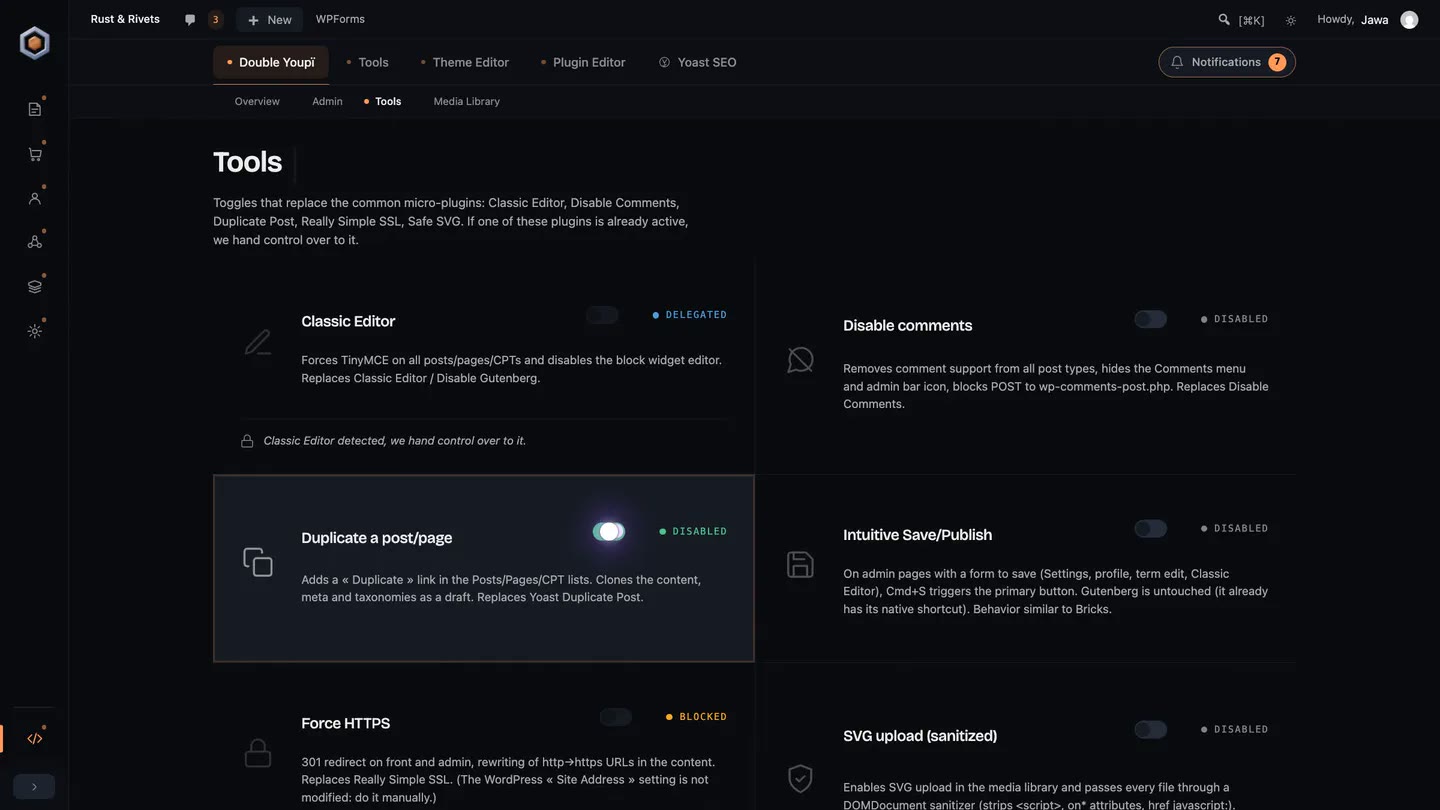
The tools sit on the Tools screen of Refined Admin Dashboard. All ten start switched off, and you turn them on one at a time.
Each tool knows the plugins that do its job. When one of them is active, the tool shows "Delegated" and stays out of the way, so the two never fight over your login page. To switch, turn the tool on, check its settings, then deactivate the old plugin. The tool takes over on the next page load.
The ten tools
1. Duplicate a post or a page
A "Duplicate" link appears in the lists of posts, pages and custom post types. The copy is a draft with the content, custom fields, categories and tags of the original. It replaces Yoast Duplicate Post and Duplicate Page.
Keep Yoast Duplicate Post if you use Rewrite & Republish, its best trick: you edit a copy of a live page while the original stays online, then merge the copy back at the same address. Our tool can't do that, and it doesn't clone in bulk or let you pick what gets copied.
2. SVG uploads
You can upload SVG files to the media library, and the tool cleans each one on arrival. It strips scripts, event attributes such as onclick, javascript: links and other risky elements. It replaces Safe SVG and SVG Support.
If people you don't fully trust can upload files, keep Safe SVG. Our cleaner is a convenience for trusted hands, and a dedicated library catches hostile SVGs more thoroughly. Safe SVG also optimises files and lets you choose who may upload them.
3. Hide the login page
The tool moves wp-login.php to an address you choose, and visitors who aren't logged in get a 404 on the old one. It replaces WPS Hide Login.
We built it so you can't lock yourself out, because we have all done that once. The tool does nothing until you save a valid address, and it emails the new address to the administrator each time you set or change it. If you forget it anyway, add this line to wp-config.php and the normal login comes back:
define( 'DOUBLEYOUPI_HIDE_LOGIN_DISABLE', true );
Keep WPS Hide Login on a multisite network, where our tool doesn't run. WPS Hide Login can also send blocked visitors to a page of your choice instead of a 404.
To switch, enter the address you already use in WPS Hide Login, so your bookmarks still work. Then deactivate WPS Hide Login. Its readme says deactivation brings the site back exactly as it was, and our tool picks up from there.
4. Force HTTPS
The tool redirects every HTTP request to HTTPS, on the site and in the admin, and rewrites internal http:// links in your posts. It replaces the HTTPS part of Really Simple Security, formerly Really Simple SSL.
It leaves the site address stored by WordPress alone, so set it to https:// yourself in Settings › General. It also refuses to run on a local development site, where certificates are rare, so it can't lock you out of your own copy.
Keep Really Simple Security if you use the rest of it: Let's Encrypt certificates, hardening, vulnerability detection and two-factor login, plus a firewall in the paid version. Its mixed content fixer also covers more ground than our rewrite, which stops at post content.
On its way out, Really Simple Security asks how you want to leave. Pick "Deactivate, and keep https". Its documentation says the .htaccess redirect it may have added and your HTTPS site address stay in place, while its mixed content fixer and its own PHP redirect stop.
5. Local avatars
Each user can upload an avatar on their profile. Your site serves avatars itself, without a single request to gravatar.com, and people without one get their initials. It replaces Simple Local Avatars, along with Avatar Privacy, One User Avatar and the avatar part of ProfilePress.
Simple Local Avatars also lets you choose which roles may upload, and shares avatars across a multisite network.
One catch before you switch: our tool doesn't read the avatars Simple Local Avatars stored, so each user picks theirs again. Until they have, deactivate Simple Local Avatars and leave it installed. Deleting it erases every user's avatar setting and the avatar files it generated, though images picked from the media library stay put.
6. Classic editor
The tool switches off the block editor for posts, pages and custom post types, and on the widgets screen. Classic Editor and Classic Widgets split that job in two, and Disable Gutenberg is the other usual pick.
Keep Classic Editor if your authors choose their editor post by post, and Disable Gutenberg if you need rules by post type, role or template. One difference you will notice: Disable Gutenberg removes the block styles from the public site by default. Our tool leaves them alone, so after the switch the block stylesheet loads on the front end again.
7. Disable comments
The tool removes comment support from every post type, closes comments and pingbacks, hides the Comments menu and its admin bar icon, and turns away comments sent straight to wp-comments-post.php. It replaces Disable Comments.
Disable Comments goes further. It works post type by post type, deletes existing comments in bulk (WooCommerce reviews included) and comes with WP-CLI commands. Its documentation also says it keeps the block editor's Notes working. If you need any of that, keep it.
8. Quieter update emails
WordPress sends an email after each successful automatic update of a plugin or a theme, and this tool stops those. Failures and critical errors still reach you, and core update emails stay as they are. It replaces the email part of Easy Updates Manager and Companion Auto Update.
Both plugins also decide which updates run and when, and keep a log. If you use that, keep them. Careful with Companion Auto Update: it deletes its settings and its log the moment you deactivate it.
9. No more admin email check
Every six months, WordPress interrupts your login to ask whether the administration email is still right. The tool removes that screen. It replaces Make Disable Admin Email Verification Prompt, which does nothing more and wins the prize for the longest plugin name in this article.
10. Cmd+S to save
Cmd+S on a Mac, Ctrl+S on a PC: the shortcut presses the save button of the admin form in front of you, from the settings to a profile, a category or the classic editor. The block editor has its own already. No popular plugin does this, and the closest one on WordPress.org was last updated in 2018. We counted it anyway, because it's the tool you will miss most on other sites.
Beyond the ten
The ten tools are the small change. Larger parts of Refined Admin Dashboard replace larger plugins, and the same rule applies: we tell you where those go further.
- Media folders. The whole of Refined Media Library comes built in, with folders and subfolders, collections, a detail panel beside the grid, unused media, and WebP and AVIF on upload. It imports your folders from FileBird, Real Media Library or HappyFiles in one click, without touching the source plugin. The paid versions of FileBird go further, with folders for other content types and WooCommerce, ZIP export and folder colours.
- Menu editor. You drag pages between sections, hide what nobody uses and promote a sub-page to the top level, and new plugins wait for your decision instead of landing at the bottom. Refined Admin Dashboard arranges one menu for the whole site, and WordPress still hides what a role isn't allowed to open. Admin Menu Editor Pro sets permissions role by role.
- Admin notices. Plugins such as Disable Admin Notices hide them. Refined Admin Dashboard collects them in one place, and we explain why here.
- Dark mode. WP Dark Mode mostly darkens your site for its visitors, with an admin version thrown in. Refined Admin Dashboard redraws the admin itself, in dark or light, with a switch in the admin bar.
- Login screen. Your logo and accent colour carry over to the login screen. LoginPress gives that one page far more design controls, and its paid version adds login security.
So, how many can you uninstall?
That depends on the site. Switch on what you use, leave the rest off, and keep the original wherever this article says so. We want fewer plugins, and better ones. An empty Plugins screen would make even us nervous.
Frequently asked questions
- Can Refined Admin Dashboard replace Yoast Duplicate Post?
- For duplicating a post, a page or a custom post type as a draft, yes. Keep Yoast Duplicate Post if you use Rewrite & Republish, bulk cloning or its settings for what gets copied.
- Is the SVG upload in Refined Admin Dashboard safe?
- It cleans every file on upload and strips scripts, event attributes and javascript links. Use it on sites where people you trust upload SVGs. If anyone else can upload files, keep Safe SVG.
- What happens if WPS Hide Login and Refined Admin Dashboard are both active?
- Nothing breaks. While WPS Hide Login is active, the login tool of Refined Admin Dashboard stays out of the way. Enter the same login address in Refined Admin Dashboard, deactivate WPS Hide Login, and the tool takes over.
- Will I lose avatars when I switch from Simple Local Avatars?
- Refined Admin Dashboard doesn't read the avatars Simple Local Avatars stored, so each user picks theirs again. Until they have, deactivate Simple Local Avatars and leave it installed: deleting it erases every user's avatar setting and the avatar files it generated.
- Are the built-in tools turned on by default?
- No. All ten start switched off, and you turn them on one at a time on the Tools screen of Refined Admin Dashboard.