How to stop admin notices from taking over WordPress
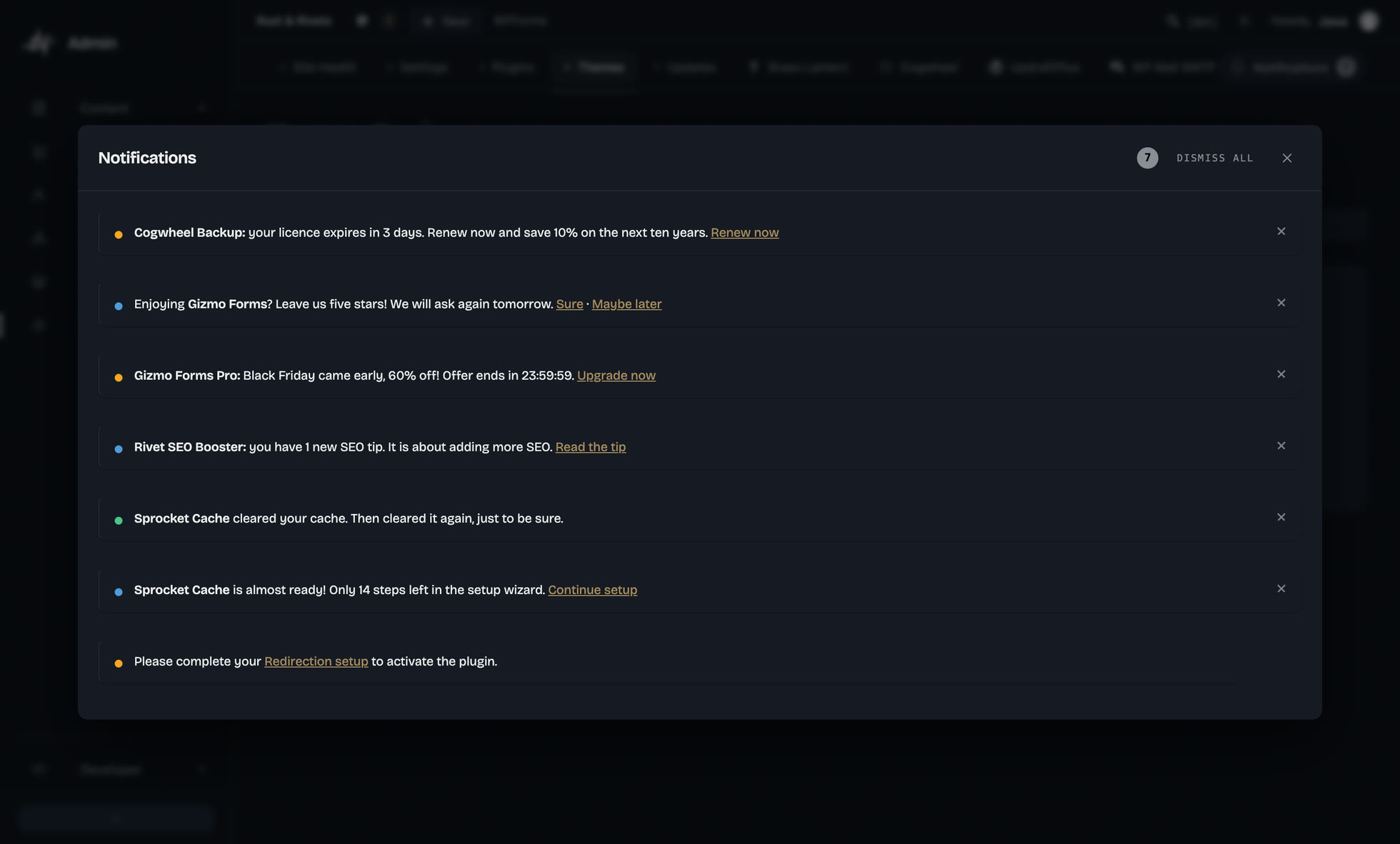
You open the admin to fix a typo. Before you reach the page, four messages get there first: a backup plugin wants you to renew, a form plugin would love five stars, an SEO plugin has a tip, and a cache plugin cleared its cache and thought you should know. By the time you have scrolled past them, the typo can wait.
Notices are how WordPress and plugins reach you, and a few of them deserve to: a failed backup, a plugin paused after a fatal error, a licence running out on Friday. The rest is marketing with the same coloured border, in the same spot, at the top of every screen.
Why notices pile up
WordPress fires a hook called admin_notices near the top of every admin page. Any plugin can print whatever it likes there, and WordPress uses the same hook for its own messages, like the core update banner or the warning about plugins paused by recovery mode. WordPress sets no limit and no order of importance.
The little cross helps less than you would think. On a dismissible notice, WordPress adds a close button, and the button removes the notice from the page in front of you. Remembering your click is the plugin's job. Many plugins do it. The others greet you again on the next screen as if nothing happened.
Two quick fixes, both a bit blunt
The first is a line of CSS that hides every .notice. The second is remove_all_actions( 'admin_notices' ), which stops WordPress from printing them at all.
Both clean up the top of the screen. They also hide the warning about last night's failed backup, and you find out on the day you need that backup.
Keep notices for administrators only
On the sites you deliver, there is a fair compromise: administrators keep every notice, everyone else sees none. The person who edits the site has no use for a licence reminder and could not act on one anyway.
Save this file as wp-content/mu-plugins/quiet-admin-notices.php. WordPress loads must-use plugins on its own, and nobody can switch them off from the Plugins screen, which suits a house rule like this one.
<?php
/**
 * Plugin Name: Quiet admin notices
 * Description: Only administrators see admin notices.
 */
add_action( 'in_admin_header', function () {
	if ( current_user_can( 'manage_options' ) ) {
		return;
	}
	remove_all_actions( 'admin_notices' );
	remove_all_actions( 'all_admin_notices' );
	remove_all_actions( 'user_admin_notices' );
	remove_all_actions( 'network_admin_notices' );
}, PHP_INT_MAX );
The function runs on in_admin_header, right before WordPress prints the notices and after every plugin has added its own. The four hooks cover the regular admin, the user dashboard and the network admin of a multisite. A plugin that slips its notice in with JavaScript will still get through, since it never went near the hook.
Remove one notice you know by name
Sometimes a single notice has to go. Start by finding out who prints it. This snippet writes every function hooked to admin_notices to your error log (wp-content/debug.log, with WP_DEBUG and WP_DEBUG_LOG on):
add_action( 'admin_notices', function () {
	global $wp_filter;
	foreach ( $wp_filter['admin_notices']->callbacks as $priority => $callbacks ) {
		foreach ( $callbacks as $callback ) {
			$f = $callback['function'];
			if ( is_array( $f ) ) {
				$class = is_object( $f[0] ) ? get_class( $f[0] ) : $f[0];
				$name  = $class . '::' . $f[1];
			} elseif ( is_string( $f ) ) {
				$name = $f;
			} else {
				$name = 'a closure';
			}
			error_log( "admin_notices, priority $priority: $name" );
		}
	}
}, PHP_INT_MIN );
Then remove it by name, with the priority it was added with. Give the wrong priority and remove_action() does nothing, without a word.
add_action( 'in_admin_header', function () {
	// A plain function, added with the default priority of 10.
	remove_action( 'admin_notices', 'myplugin_renewal_notice' );
	// A static method, added with priority 20.
	remove_action( 'admin_notices', array( 'My_Plugin_Admin', 'review_request' ), 20 );
}, PHP_INT_MAX );
You will hit a few walls. A notice added by an object method can only be removed with that same object, and plugins rarely share theirs. A notice added by an anonymous function can't be removed at all. And when the plugin renames its function in an update, the notice is back and your list needs another line.
Collect them instead
The trouble with notices is where they sit: at the top of every screen, all at once, whether you have a minute or not. Put them behind a counter. You can see that something is waiting, you open the list when it suits you, and the page you came for is back at the top. Feedback on something you just did is a different case: you clicked Save, so "Settings saved" should still show up straight away.
The notices centre in Refined Admin Dashboard
Refined Admin Dashboard, our free plugin that redraws the whole WordPress admin, handles notices this way, with no setting to find. Zero notices are harmed in the process.
- Notices from WordPress and from your plugins go into a Notifications counter at the top right of the page, including the ones a plugin adds later with JavaScript.
- The plugin moves each notice and never copies or deletes one. Every notice keeps its own close button, so a plugin that remembers your click still does.
- Dismiss all presses each notice's close button for you. A notice without a close button stays in the list until its plugin takes it back.
- Feedback on what you just did, such as "Settings saved" or a form error, also appears as a short message that fades out.
- Notices meant to stay inside a form stay there.
A word to plugin authors
If you write plugins, print your notices with wp_admin_notice() (WordPress 6.4 and later) instead of hand-written markup. Give each one its real type (error, warning, success or info), make it dismissible and remember the dismissal. Keep it on your own screens unless the whole site needs to know. And please, keep the sale banner off the list of posts. Your users opened that screen to write a post.
Frequently asked questions
- How do I hide admin notices in WordPress without a plugin?
- Create a must-use plugin that calls remove_all_actions() on admin_notices from the in_admin_header hook. Limit it to the roles that can't act on notices, so administrators still see a failed backup or a paused plugin. The code is in this article.
- Is it safe to hide all admin notices?
- Not completely. Errors and marketing share the same hook, so you hide a failed backup or an expiring licence along with the sale banners. Hide notices for the roles that can't act on them, or collect them in one place.
- Why do dismissed admin notices come back?
- The close button WordPress adds removes the notice from the page you are on, and that's all. The plugin that printed the notice has to remember your click, and some don't.
- How do I show admin notices to administrators only?
- Hook a function to in_admin_header that returns early for users who can manage_options and otherwise calls remove_all_actions() on admin_notices, all_admin_notices, user_admin_notices and network_admin_notices. The full snippet is in this article.
- Does Refined Admin Dashboard delete admin notices?
- No. It moves every notice into a Notifications counter that you open when you want, and each notice keeps its own close button.