Two WordPress email nags, and how to stop them
Last tested on October 29, 2026 with WordPress 7.1.4 and Refined Admin Dashboard 1.0.26
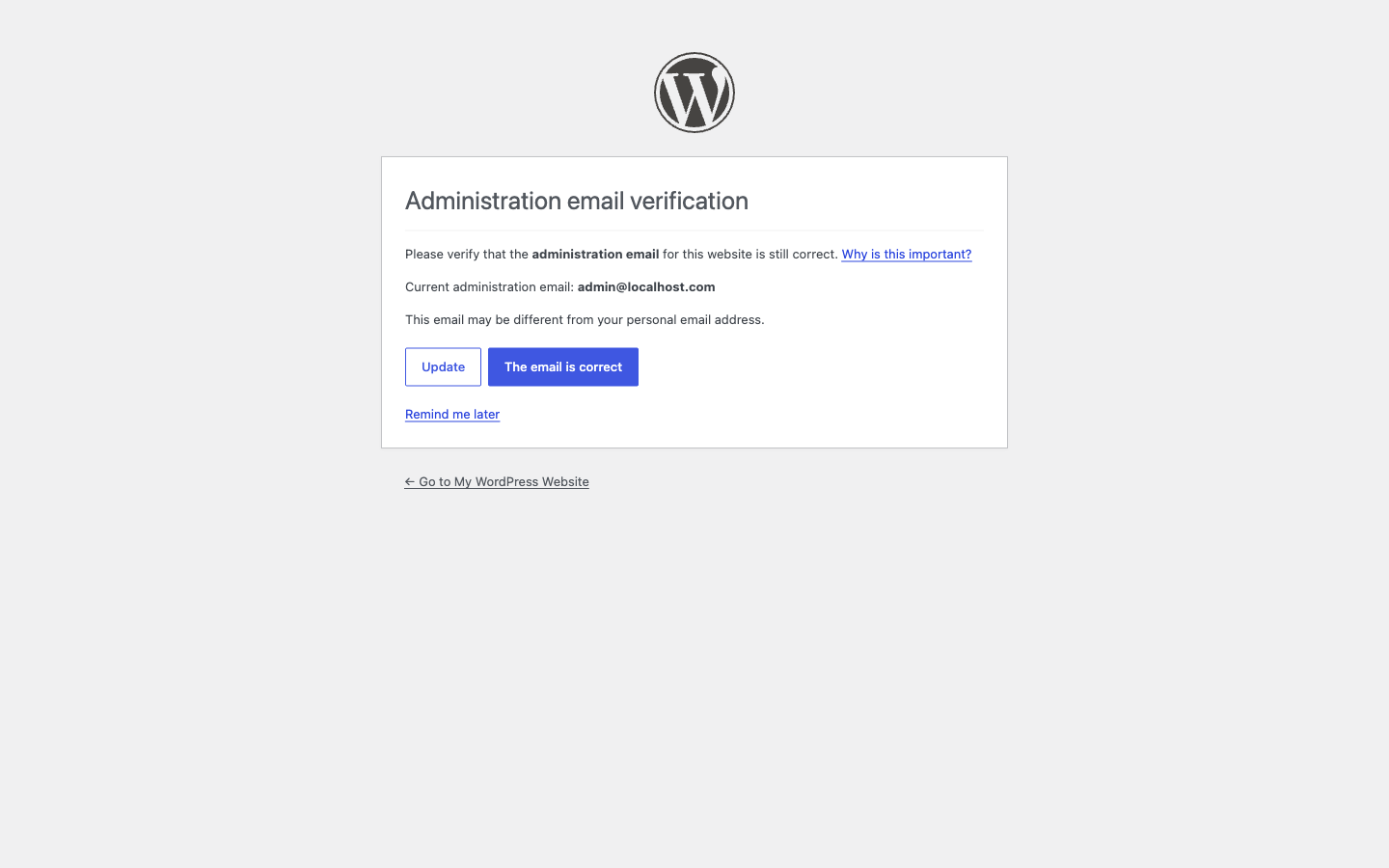
The admin email check
Since WordPress 5.3, an administrator who logs in through the login form sometimes lands on a screen called "Administration email verification" instead of the dashboard. It shows the current address and three ways out: Update, The email is correct, or Remind me later. Confirm, and it comes back 180 days later (WordPress counts six months of 30 days). Remind me later buys three days. Other roles never see it.
(It has a gift for showing up the morning you logged in to fix one typo.)
Without a plugin
The filter that sets the interval also turns the screen off when it returns 0. Put this in a must-use plugin (a PHP file in wp-content/mu-plugins) or in your child theme's functions.php:
add_filter( 'admin_email_check_interval', '__return_zero' );
To keep the reminder, less often, return a longer interval:
add_filter( 'admin_email_check_interval', function () {
	return YEAR_IN_SECONDS;
} );
The new interval starts the next time you click The email is correct, because that is when WordPress writes down the date of the next check.
With a plugin
Make Disable Admin Email Verification Prompt (2,000+ active installations) does that one thing. Admin and Site Enhancements, or ASE (200,000+), lists the admin email verification screen among its "Disable Smaller Components" options.
The auto-update emails
When plugins or themes update themselves, WordPress writes to the administration email. A good run gets "Some plugins were automatically updated", and the email says "No further action is needed on your part." A bad one gets "Some plugins have failed to update". When only failures happened, WordPress writes once per failed version, not at every attempt, so those emails stay rare. They are the ones to keep.
Without a plugin
The filter runs before WordPress sorts the successes from the failures, and it receives the list of results, not a "success" or "fail" label. Return false and the plugin part of the email goes, failures included. To mute only the good news, look at the results:
function mysite_keep_failed_update_emails( $enabled, $results ) {
	foreach ( (array) $results as $result ) {
		if ( true !== $result->result ) {
			return $enabled; // Something failed: keep the email.
		}
	}
	return false; // Everything worked: no email.
}
add_filter( 'auto_plugin_update_send_email', 'mysite_keep_failed_update_emails', 10, 2 );
add_filter( 'auto_theme_update_send_email', 'mysite_keep_failed_update_emails', 10, 2 );
WordPress core updates have their own filter, auto_core_update_send_email. That one does receive a type (success, fail or critical), so 'success' === $type is enough there.
With a plugin
Easy Updates Manager (300,000+ active installations) manages updates as a whole: which plugins and themes update automatically, logs, and where the emails go. Companion Auto Update (40,000+) lets you pick when updates run, can delay them by a few days, keeps an update log, and sends its notifications on their own schedule.
Before you mute anything: the address behind both
All of these emails go to the Administration Email Address, in Settings, then General. So does "Your Site is Experiencing a Technical Issue", the email WordPress sends when a plugin or a theme causes a fatal error, with a link to recovery mode.
It is not the email on your user account. A lost password goes to the email in your own profile, and the check screen itself warns that the administration email "may be different from your personal email address." A stale address won't lock you out. WordPress just keeps sending the failure and fatal error emails to an inbox nobody opens. Turn the check off, and WordPress stops asking whether anyone reads it.
Fix the address first. Changing it in Settings sends a link to the new address, and nothing changes until someone clicks it. If fatal error emails should go to someone else, WordPress reads a RECOVERY_MODE_EMAIL constant in wp-config.php. Then mute the rest.
Refined Admin Dashboard: a switch for each
Refined Admin Dashboard is our own plugin. It redraws the whole admin, dark or light, with a menu sorted into sections and plugin notices gathered in one counter. It also has ten small tools, and two of them do what this article describes.
All ten tools start switched off. You turn them on one at a time on the Tools screen, under Double Youpï. "Disable email verification" removes the screen that asks, every few months at login, whether the admin email is still right. It uses the same filter and leaves the other admin emails alone.
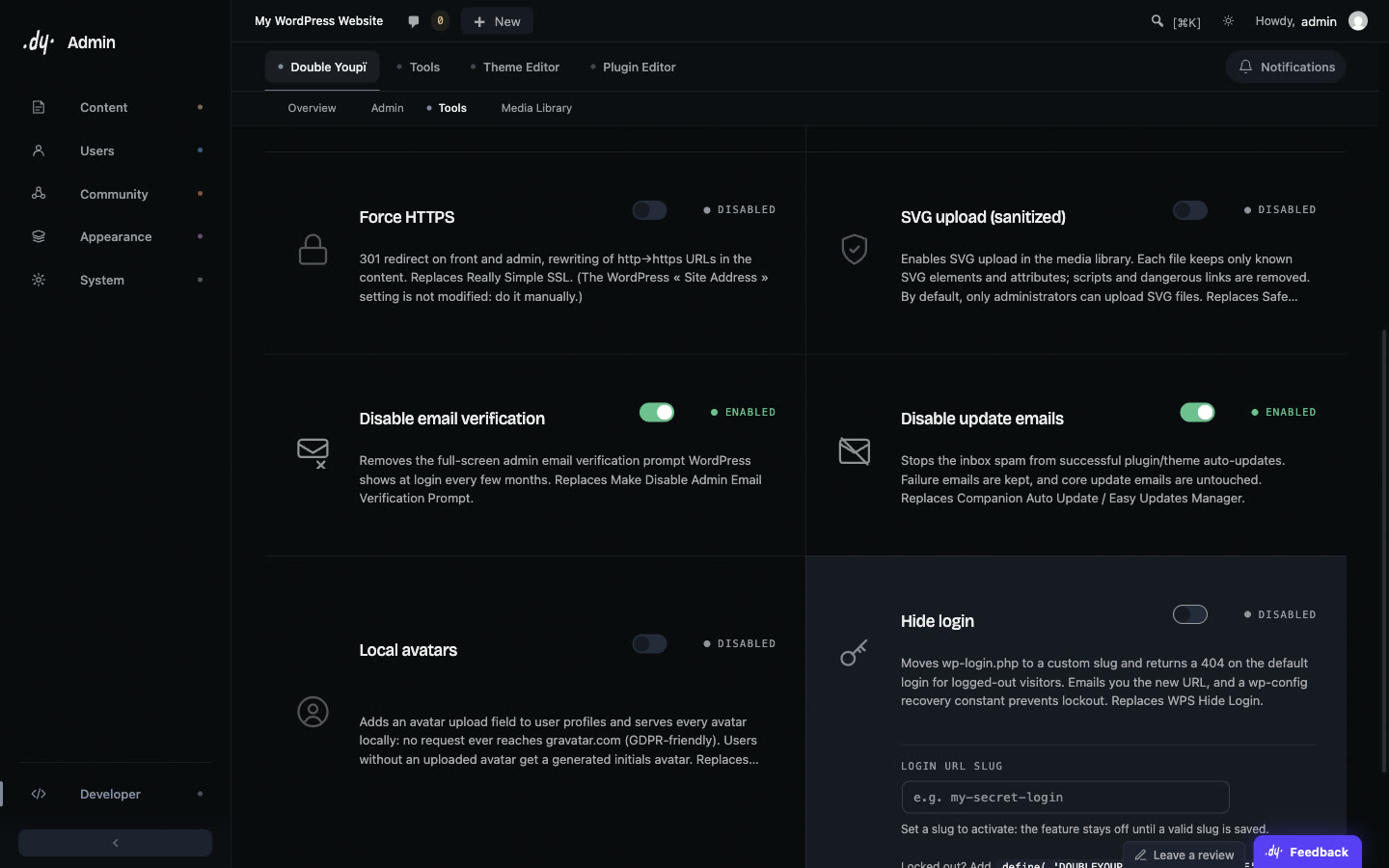
"Disable update emails" stops the email WordPress sends when automatic plugin and theme updates all go through. If one fails, the email still comes. Core update emails are untouched. (We read "No further action is needed" as a feature request.)
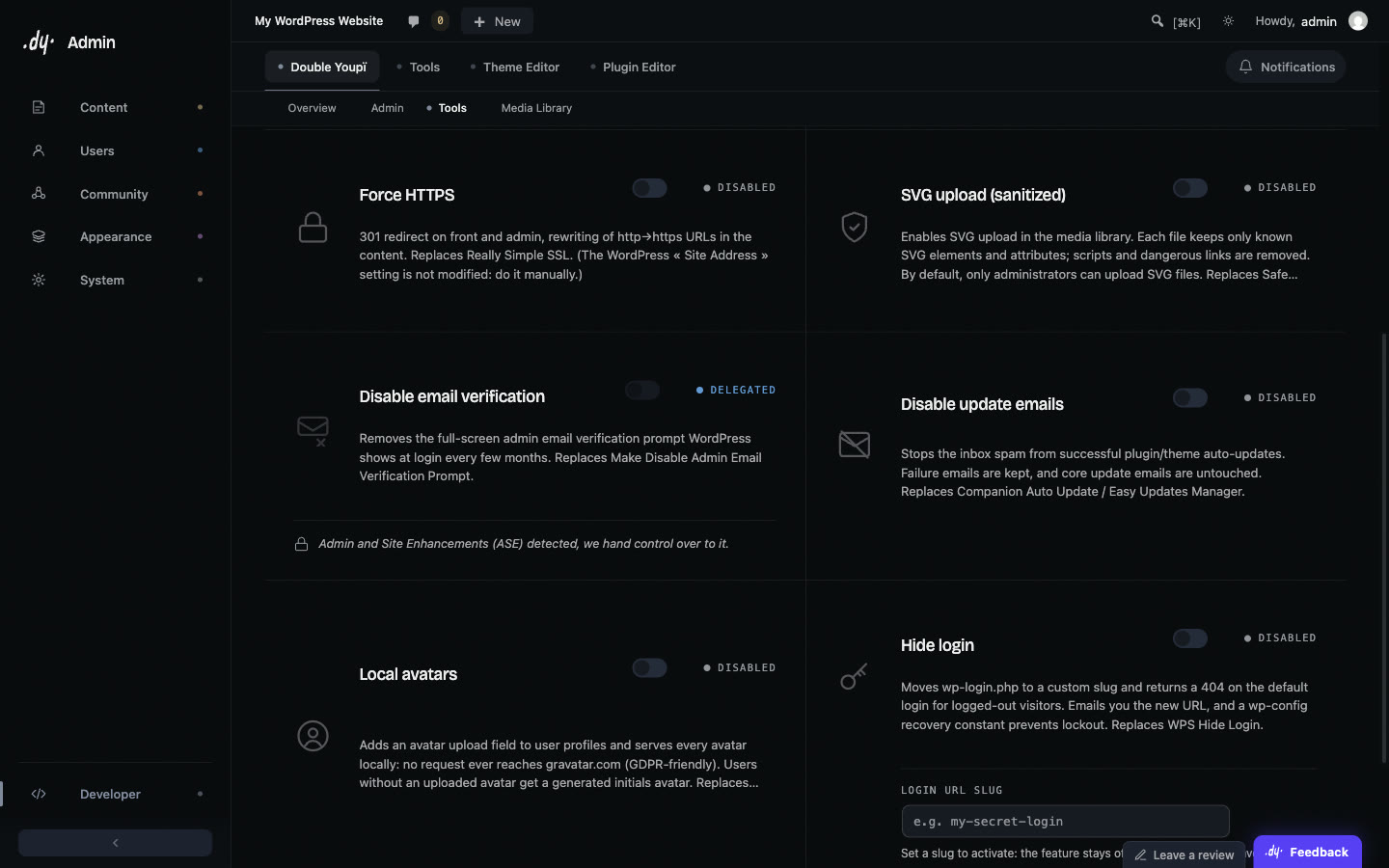
If a plugin that does the same job is active, the tool shows "Delegated" and stays out of the way. Being active is enough: ASE locks the email check tool even with its own option off. To switch, deactivate the old plugin, then turn the tool on and save.
When another option is better
- You want to choose which plugins update automatically, keep a log, send update emails to another inbox or run updates a few days late: keep Easy Updates Manager or Companion Auto Update. Refined Admin Dashboard does none of that.
- ASE is already on the site: use its switch. Ours will show "Delegated" anyway.
- You only want these two things gone, with no new admin: the filters above, in a must-use plugin, are shorter than any plugin.
Frequently asked questions
- How often does WordPress ask to verify the admin email?
- Every 180 days, to administrators, when they log in through the login form. Remind me later pushes it back three days. The
admin_email_check_intervalfilter changes the interval, and 0 turns the screen off. - Can I stop WordPress update emails but keep the failure emails?
- Yes, but not with
__return_false, which drops failures too. Filter on the update results, as in the code above. - Does turning off the admin email check stop other WordPress emails?
- No. It removes the login screen only. Password resets, update emails and fatal error emails keep going out as before.
- Is the administration email the same as my login email?
- Not necessarily. The administration email is the site's address in Settings, then General. Your login and password resets use the email in your profile.