WordPress admin dark mode: colour schemes, dark mode plugins, or a full redraw
Last tested on October 29, 2026 with WordPress 7.1.4 and Refined Admin Dashboard 1.0.24
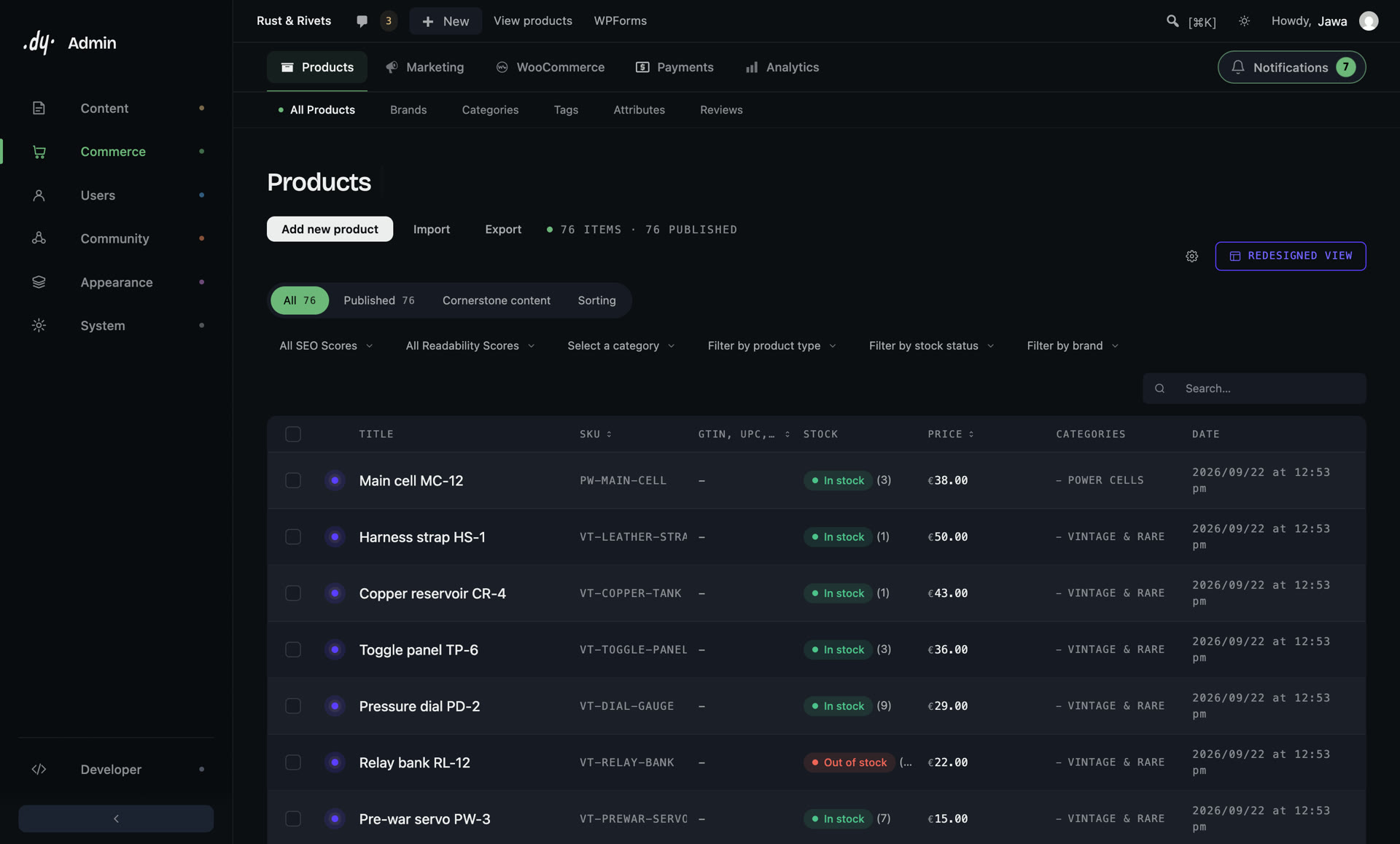
A dark admin is a matter of taste, like tabs against spaces. You don't need a medical reason to want one.
What WordPress gives you: colour schemes
Open Users, then Profile, and find Administration Color Scheme. WordPress 7.1 ships nine of them, from Default to Coffee. Each one recolours the side menu, the toolbar, the buttons and the links, and the page behind them stays light grey. (Midnight darkens the menu and leaves the rest of the screen at noon.)
Each user picks their own scheme, and you install nothing. If the sidebar colour is all that bothers you, stop here.
WordPress may get there. The merge proposal for the admin's theming system, written for 7.1, says that a "dark mode"-like experience will be explored in future releases. For now, a dark admin takes a plugin.
Dedicated dark mode plugins
Search the plugin directory for "admin dark mode" and two families come up.
The first darkens your site for its visitors. WP Dark Mode (20,000+ active installations) puts a switch on the front end and lists an admin dark mode among its features. Dark Mode Toggle (2,000+) gives visitors a toggle button. Both are about what your visitors see.
The second works on the admin only. Dark Mode for WP Dashboard (3,000+) has a switch in the admin bar and a Dark, Light or Auto choice for each user, covers the block editor and the Site Editor, and supports 14 popular plugins out of the box. DarkAdmin (100+) is a CSS theme with colour pickers and an optional script that darkens the bright areas of other plugins. AboveWP Admin Dark Mode (90+) offers three dark themes and can switch on a schedule, sunset to sunrise included.
(Installations: WordPress.org API, 29 October 2026. Features: each plugin's page, same day.)
These plugins do one job and ask for little setup. Their limit comes from the method. A dark stylesheet covers the screens its authors wrote rules for, so each plugin with screens of its own needs its own rules, hence the lists of supported plugins. DarkAdmin's optional script exists for the third-party areas "not covered by the built-in stylesheet".
Before you pick one, reload a few screens to see whether a light page shows first, then open the plugins you use every day.
A full redraw: Refined Admin Dashboard
Refined Admin Dashboard is ours, so read this part with that in mind. It redraws the admin, dark by default or light, with a switch in the admin bar. The dark mode comes with the rest of the redesign: a menu sorted into sections, plugin notices gathered in one counter, a dashboard you compose by drag and drop.
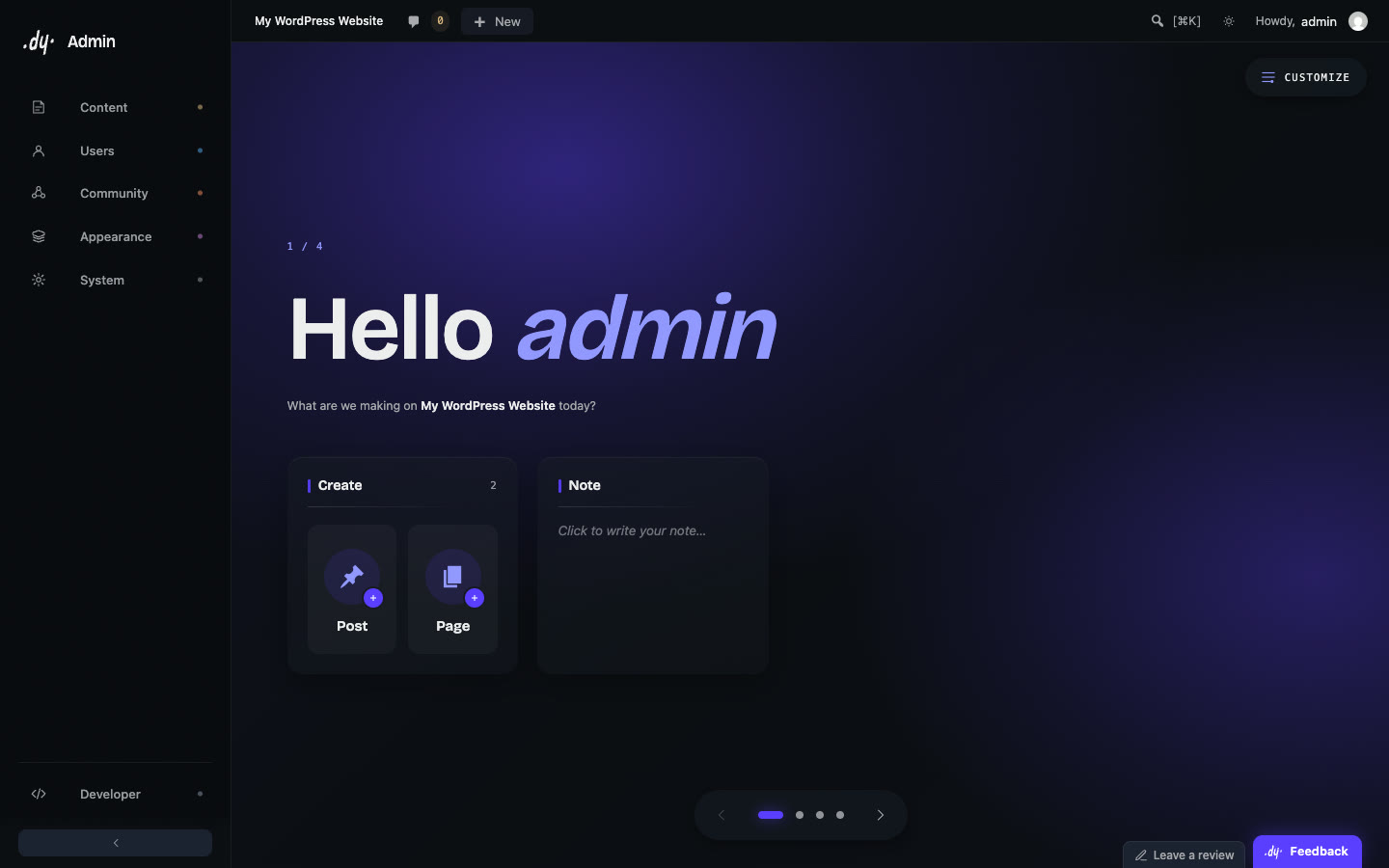
It dresses up WordPress's own components instead of replacing them, so a plugin built with those components gets the same treatment as the rest of the admin, and nobody writes rules for it first. Page builders and plugins with a complete interface of their own are detected and left alone: RAD keeps its menu and bar around them. Your choice of dark or light is applied before the page is drawn. Text contrast reaches AA level in both themes.
In the block editor, RAD dresses the top bar and the side panels, and the canvas keeps your theme's styles.
Where it stops
The Site Editor and the Customizer stay as WordPress draws them. Some plugins sit in between: classic screens, but white panels of their own. In dark mode, they keep their white panels, and RAD makes sure the text on them stays readable. Text too dark for the dark background is brought up to AA contrast. When at least half the text of a page sits on those panels, RAD moves that page to WordPress's light background, keeps its own menu and bars, and remembers it for next time. A few pages stay mixed, but readable. (We would rather you read that here than in a support thread.)
When another option is better
- You want dark colours with the same menu, notices and dashboard as before: a dark mode plugin such as Dark Mode for WP Dashboard is the shorter road.
- You want the block editor dark, canvas included: Dark Mode for WP Dashboard darkens the editor's content area too.
- You want the admin to follow your system setting or go dark at sunset: Dark Mode for WP Dashboard has an Auto mode, AboveWP a schedule. Refined Admin Dashboard does neither: it keeps the choice you make with the switch.
- You want visitors to see a dark site: that is the job of WP Dark Mode or Dark Mode Toggle.
Frequently asked questions
- Does WordPress have a dark mode for the admin?
- No, not in 7.1: the colour schemes recolour the menu and the toolbar, and the screens stay light. A dark-mode-like experience is on the list for future releases.
- Does dark mode slow down the admin?
- A little. We measured Refined Admin Dashboard as a whole, redesign included. Visitors get nothing: the plugin loads no file on the public site. In the admin, it adds 190 to 250 KB compressed depending on the screen, 10 to 15% more CSS and JavaScript than the page already had, downloaded once per version. The media library and the dashboard take a few tenths of a second longer. Since version 1.0.15, moving from one screen to the next takes 0.5 s instead of 1.4 s in our own benchmarks.
- Can each user choose dark or light?
- Yes. In Refined Admin Dashboard, everyone who sees the redesigned admin gets the switch in the admin bar. The choice is remembered in the browser, not in the account: on another browser or another computer, you start again in dark. Once the per-user mode is on (it is off by default), each account can also go back to stock WordPress without changing anyone else's.
- Will a dark admin change my site for visitors?
- Not with Refined Admin Dashboard, which loads nothing on the front end. The front-end plugins above do the opposite, on purpose.